|
Training Requirement Type Register |
This function allows you to set up the training requirement type codes. If you have the appropriate access rights, you will also be able to modify and delete records in this register.
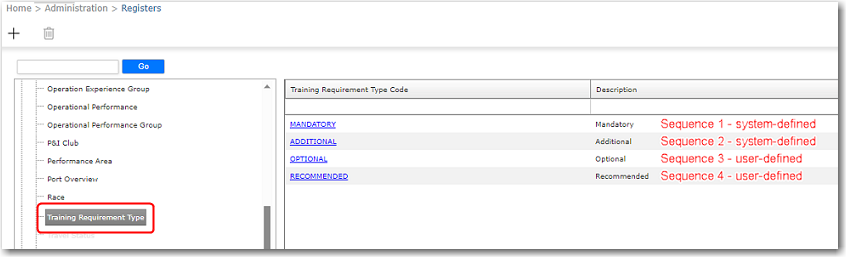
The training requirement type is used when setting the training by rank on the Training Requirement screen. For example, the training course could be set as Mandatory or it could be set as an Additional, Optional, or Recommended course for the rank. A backend sorting sequence is applied to the training requirement types, starting with two system-defined types that cannot be deleted, which are 1 - Mandatory, followed by 2 - Additional. Subsequent training requirement types created by users will follow from sequence 3 onwards.
Depending on the company requirement, the description for the 'Additional' requirement type can also be changed to 'Recommended' or 'Optional' without needing to create a separate Recommended/Optional training requirement type in the register.
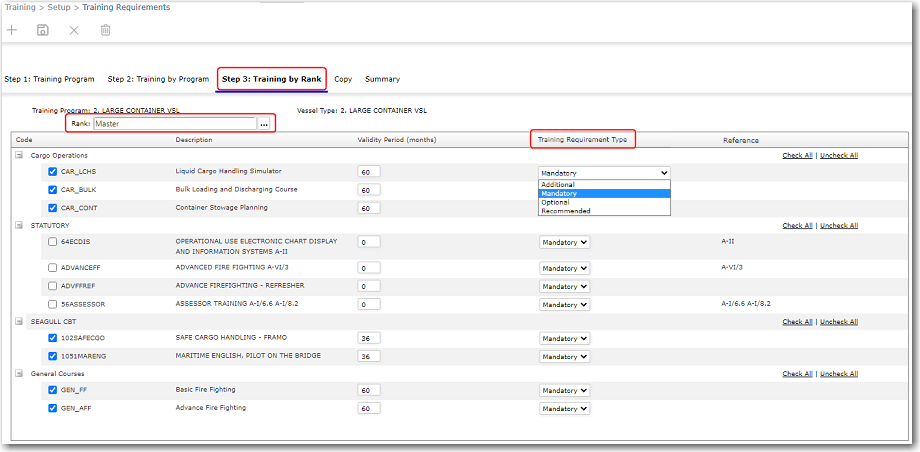
The Training Requirement Type created in the register is available for selection for a training on the Training Requirements screen under Step 3: Training by Rank.
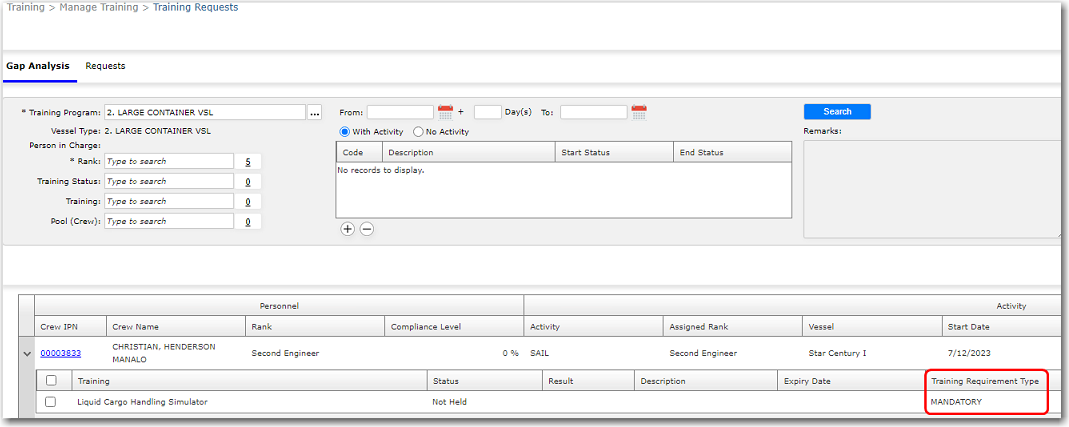
The requirement type set for the training will be used as indication when performing Gap Analysis for the training and is displayed on the Training Requests screen under the Gap Analysis tab.
Screen Navigation: Home - Administration - Registers - Crewing - Training Requirement Type
Creating Training Requirement Type Codes
|
To create training requirement type codes: 1. From the HR Manager main menu, click Registers under the Home - Administration sub menu. Then, click Crewing, followed by Training Requirement Type. 2. The training codes that have been previously created will be displayed in the table. To create a new training code, click New. 3. The Training Requirement Type screen will be displayed where you can enter information in the following fields:
4. Click Save to complete the creation of this training requirement type code.
|
Editing Training Requirement Type Codes
|
To edit existing training requirement type codes: 1. From the HR Manager main menu, click Registers under the Home - Administration sub menu. Then, click Crewing, followed by Training Requirement Type. 2. The training requirement type codes that have been previously created will be displayed on the screen. To edit an existing Training Requirement Type code, click to select the entry to view its details on the Training Requirement Type screen. 3. You may then edit the description of the training requirement type in the Description field. Please note that the Training Requirement Type Code field cannot be edited. 4. Click Save to save the changes you have made.
|
Deleting Training Requirement Type Codes
|
To delete existing training requirement type codes: 1. From the HR Manager main menu, click Registers under the Home - Administration sub menu. Then, click Crewing, followed by Training Requirement Type. 2. The training requirement type codes that have been previously created will be displayed on the screen. To delete an existing Training Requirement Type code, highlight the entry on the screen. 3. Click Delete. Confirm your intention to delete the training requirement type code. The code will then no longer be listed on the screen. Note: Alternatively, you can click to select a code and view its details on the Training Requirement Type screen, then click Delete and confirm your intention to delete the code.
|