Jump
to topic:
Jump
to topic:Registering Crew's Opening Balance |
This feature enables you to register the opening balance of a crew members onboard a vessel. There are two ways to maintain the opening balance amounts for crew members; Accumulative and Non-Accumulative. You may register the opening balance for crew members only when the account period has been created.
Non-Accumulative opening balance refers to the monthly balances that are either paid off in total or rolled over in total until the sign off date. The Payroll Summary however only displays these items in total. Accumulative opening balance refers to selective monthly items that are retained until the sign off date. The Payroll Summary displays these items in separate columns.
Whether or not a particular item is Accumulative would also depend on the user setup in the Cost Element Register.
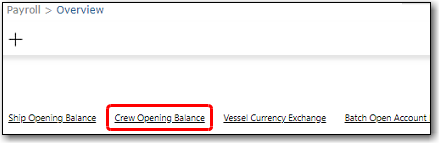
Screen Navigation: Payroll - Overview - Crew Opening Balance link
Jump
to topic:
Registering the Crew's Accumulative Opening Balance on a Vessel
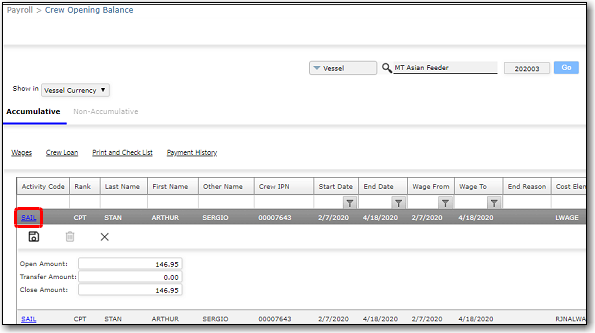
To register the crew's accumulative opening balance: 1. From the HR Manager main menu, click Overview under the Payroll menu. 2. On the Overview screen, click the Crew Opening Balance link. 3. The Crew Opening Balance screen is displayed. Use the search field to search for crew members based on either Vessel, Personnel List, Pool, Agent, Crew or All (i.e. all crew members based on the entered account period). Ensure that the correct account period has been entered and select whether the amounts are to be displayed in Vessel Currency or Crew Currency. 4. Under the Accumulative tab, click on the Activity Code of a specific crew member for whom you want to register the crew's accumulative opening balance. 5. Enter the accumulative opening balance amount for the crew member in the Open Amount field. Ensure that your entry corresponds with the item listed in the Cost Element column. The System will automatically calculate and display the previously accumulated amount to this opening balance amount as well. 6. The Transfer Amount field enables you to transfer a crew's balance. Transfer balance is commonly executed when a crew is promoted and, instead of requesting for payment on board or allotment remittance, the previous balance is transferred to his new position. Enter the amount in this field. Note: Prior to promoting a crew member, you are required to confirm that the particular crew member has been signed off from his previous activity and is allocated with a new tenure contract. 7. The Close Amount field enables you to enter the closing balance of the accumulated wages as of the end of the account period selected. Enter the amount in the field. 8. Click Save to save your entries. Note: You can click the Reset button to reset all Open and Transfer Amounts to zero for a fresh start.
|
Register the Crew's Non-Accumulative Opening Balance on a Vessel
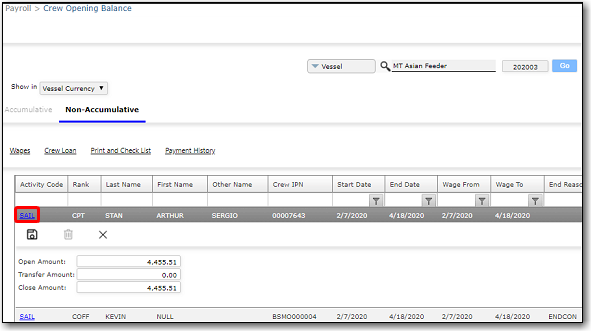
To register the crew's non-accumulative opening balance: 1. From the HR Manager main menu, click Overview under the Payroll menu. 2. On the Overview screen, click the Crew Opening Balance link. 3. The Crew Opening Balance screen is displayed. Use the search field to search for crew members based on either Vessel, Personnel List, Pool, Agent, Crew or All (i.e. all crew members based on the entered account period). Ensure that the correct account period has been entered and select whether the amounts are to be displayed in Vessel Currency or Crew Currency. 4. Click on the Non-Accumulative tab and then click on the Activity Code of a specific crew member for whom you want to register the crew's non-accumulative opening balance. 5. Enter the non-accumulative opening balance amount for the crew member in the Open Amount field. 6. The Transfer Amount field enables you to transfer a crew's balance. Transfer balance is commonly executed when a crew is promoted and, instead of requesting for payment on board or allotment remittance, the previous balance is transferred to his new position. Enter the amount in this field. Note: Prior to promoting a crew member, you are required to confirm that the particular crew member has been signed off from his previous activity and is allocated with a new tenure contract. 7. The Close Amount field enables you to enter the closing balance of the accumulated wages as of the end of the account period selected. Enter the amount in this field. 8. Click Save to save your entries. Note: You can click the Reset button to reset all Open and Transfer Amounts to zero for a fresh start.
|
What would you like to do?