To create a new manning budget:
1. From the HR Manager main menu, click Budgets under the Budget menu.
2. The Budgets screen will display previously created budgets in the table. To create a new budget, click New.
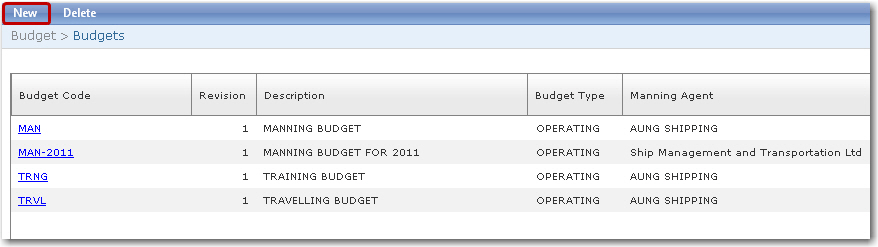
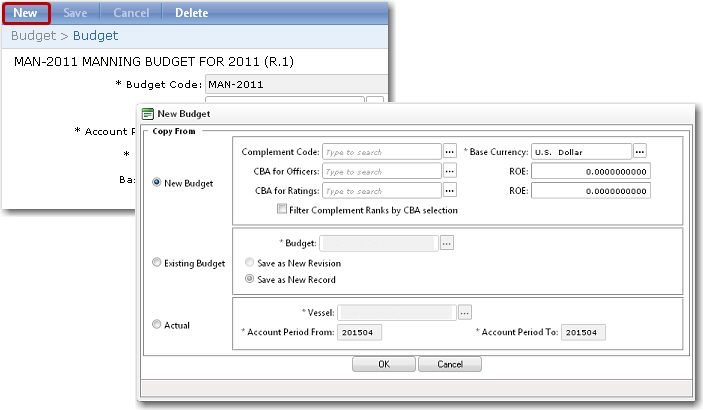
Note: If you click New on the Budget screen (accessed by selecting a budget record on the Budgets screen), the New Budget pop-up window will be displayed where you will be given three options:
-
New Budget - click this radio button if you would like to create a new budget from scratch. You can also select to create a budget based on a Complement Code.
-
Existing Budget - allows you to copy an existing budget. Select the Budget code that you want to copy. You can also specify if you would like to save this as a new revision of the budget or to save it as a completely new budget record.
-
Actual - allows you to copy a budget from a Vessel or an Accounting Period. When a new budget is created using ‘Actual’, the system will include the Medical cost, Training cost and Travel cost in the budget.
Click OK after making your selection.
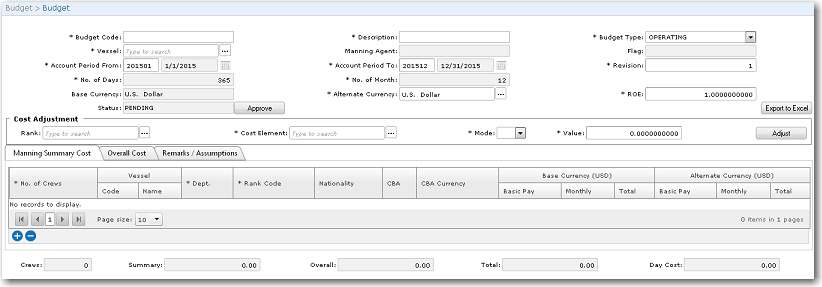
3. On the Budget screen, the fields will be activated and populated based on your selection OR if you have selected to create a budget from scratch, you will now need to enter details in the following fields:
|
Field |
Description |
|
Budget Code |
Enter a code that is to represent this budget. |
|
Description |
Enter a description of this budget. |
|
Budget Type |
Select if this is to be an Operating Budget or a Marketing Budget (for situations of a proposed vessel or for marketing purposes).
When you select ‘Marketing’ in the Budget Type field: - The Vessel field and Lookup will be switched automatically to the Company field and Lookup. - The Manning Agent and Flag fields will be hidden.
Alternatively, if the Budget Type selected is ‘Operating’, then the Manning Agent and Flag fields will be automatically populated based on your vessel selection.
|
|
Vessel |
Use the Lookup function to select the vessel for which you are setting up this budget. This selection is mandatory if you have selected to set up an Operating budget. If you have selected to set up a Marketing budget then vessel selection is not required. |
|
Manning Agent |
The Manning Agent will be automatically displayed based on the Vessel selection made. |
|
Flag |
The Flag will be automatically displayed based on the Vessel selection made. |
|
Account Period From |
Enter the start date of the Account Period from when this budget will be valid. |
|
Account Period To |
Enter the end date of the Account Period after which this budget will no longer be valid. |
|
Revision |
Enter the revision number of this budget. Further revisions to this budget will be tracked by the System. |
|
No. of Days |
The total number of days during which this budget will be valid. This will be automatically calculated by the System. |
|
No. of Months |
The number of months during which this budget will be valid.
Note: The Total column in the Manning Summary Cost tab will be calculated based on the monthly cost multiplied by the number of months entered in this field. |
|
Base Currency |
The base currency will be automatically displayed. |
|
Alternate Currency |
Use the Lookup function to select an alternate currency for this budget, if required. |
|
R.O.E |
The system will automatically populate this field with the rate of exchange between the two selected currencies. |
|
Status |
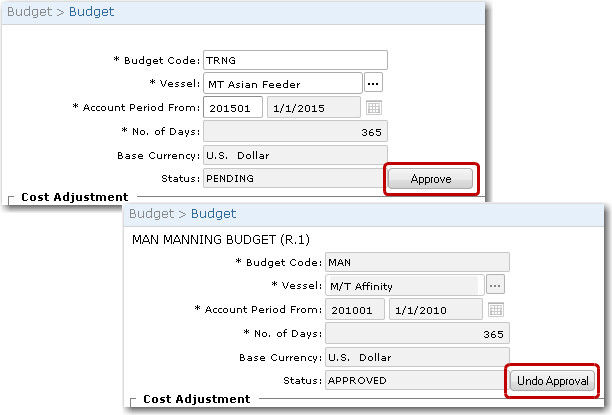
The status of the budget report, whether it is 'Pending' or 'Approved'.
Note: Users with appropriate access rights can click the Approve button to approve a pending budget. Once a budget has been approved, it will be locked to prevent any further changes.
Alternatively, for approved budgets, click the Undo Approval button to change the status to 'Pending'.
|
|
Cost Adjustment section: Allows you to make any adjustments to the budget based on Rank and Cost Element. |
|
|
Rank |
Use the Lookup function to select the Rank for which the adjustment is to be made. The Rank selected must be a rank selected for this budget. |
|
Cost Element |
Use the Lookup function to select the Cost Element on which the adjustment is to be based. This is selection is mandatory. |
|
Mode |
Select whether to enter the amount by specifying a percentage or to display the amount directly. |
|
Value |
Enter the appropriate value of the adjustment. |
|
Adjust |
Click this button to carry out the adjustment. |
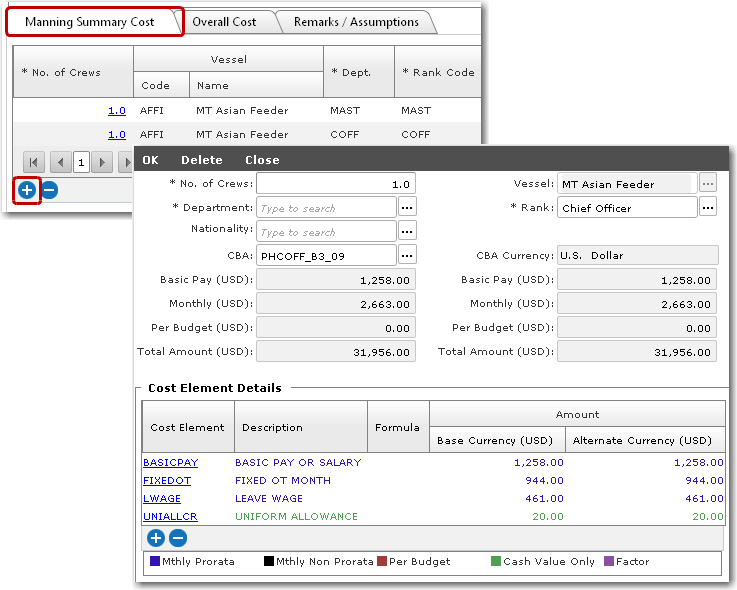
4. You can now specify the manning summary cost. Click the Manning Summary Cost tab. This is where you specify the number of crew of a particular rank and department that is required onboard the vessel and the budgeted cost for these personnel. Click the '+' icon at the bottom left of the table to add a new row and enter the following details:
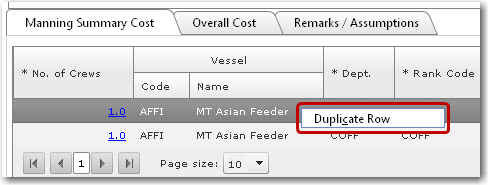
Note: To speed up your entries here, you can also right click on a record and select ‘Duplicate Row’ to duplicate a row and then make minor amendments to it.
Note: If the Budget Type selected is ‘Operating’, then all the vessel-related columns under this tab will be defaulted to the selected vessel and will be non-editable. If the Budget Type selected is ‘Marketing’, the vessel columns will not be defaulted to a vessel; instead, the System will filter the Vessel Lookup and show only the vessels that belong to the selected Company.
|
Field |
Description |
|
No. of Crews |
Enter the number of crew required for the particular department and rank. |
|
Vessel |
The name of the vessel will be automatically populated based on the selection you have made in the Vessel field. |
|
Department |
Use the Lookup function to select the crew's department. |
|
Rank |
Use the Lookup function to select the crew's rank. The list available is based on the Department you have selected. |
|
Nationality |
Use the Lookup function to select the nationality of the crew, if this rank needs to be nationality-specific for budgeting purposes. |
|
CBA |
Use the Lookup function to select the applicable CBA. The CBA contains all the salary-related information for the selected Rank. |
|
CBA Currency |
The currency of the CBA will be automatically populated based on the CBA selected. |
|
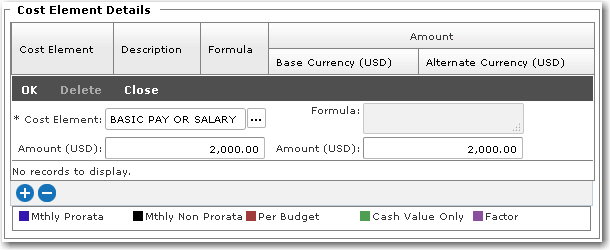
Cost Element Details: Click the '+' icon to enter a Cost Element and the Amount fields will be automatically populated (in base currency and alternate currency) based on the default value entered in the Cost Element Register. Click OK.
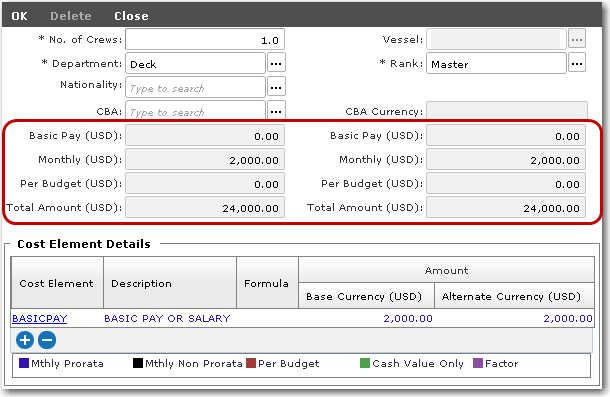
The Basic Pay, Monthly, Per Budget and Total Amount fields (in base currency and alternate currency) will then be populated based on the values entered in the Cost Element Details section.
|
|
|
Base Currency: This captures the basic pay, monthly cost, cost per budget and total cost as per base currency. |
|
|
Basic Pay |
The basic pay will be displayed based on the CBA selected. |
|
Monthly |
The monthly pay received by the crew including allowances and so on will be displayed based on the selected CBA. |
|
Total Amount |
This is calculated based on the monthly amount multiplied with the number of months (No. of Months field) of the budget period. |
|
Alternate Currency: This captures the basic pay, monthly cost, cost per budget and total cost as per alternate currency. |
|
|
Basic Pay |
The monthly pay received by the crew including allowances and so on will be displayed based on the selected CBA. |
|
Monthly |
The monthly pay received by the crew including allowances and so on will be displayed based on the selected CBA. |
|
Total |
This is calculated based on the monthly amount multiplied with the number of months (No. of Months field) of the budget period. |
5. You can then specify the overall cost. Click the Overall Cost tab. This tab captures the budget cost information, relating to a vessel, which are on a fixed sum basis. Such items should be configured in the Cost Element Register as not being a 'CBA Listing' item and should be indicated as a 'Cash Value' item so as to be listed here for selection. Click the '+' icon at the bottom left of the table to add a new row and enter the following details:
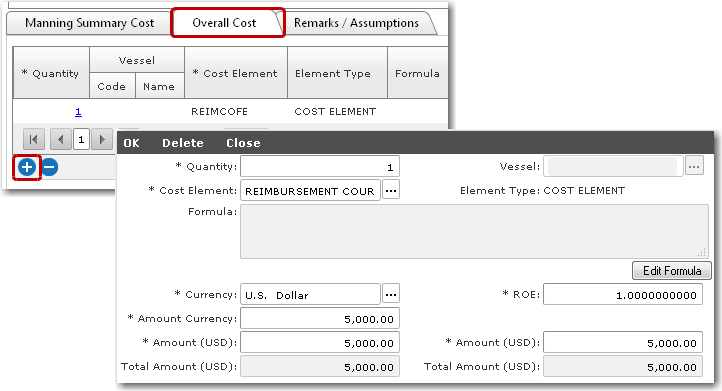
Note: If the Budget Type selected is ‘Operating’, then all the vessel related columns under this sub tab will be defaulted to the selected vessel and will be non-editable. If the Budget Type selected is ‘Marketing’, the vessel columns will not be defaulted to a vessel; instead, the System will filter the Vessel Lookup and show only the vessels that belong to the selected Company.
|
Field |
Description |
|
Quantity |
Enter the quantity of the particular cost item. |
|
Vessel |
The name of the vessel will be automatically populated based on the selection you have made in the Vessel field. |
|
Cost Element |
Use the Lookup function to select the cost element. The Cost Element Lookup includes records from the Cost Element Register. |
|
Formula |
Use this field if you need to specify a formula for the calculation. Click the Edit Formula button to open the Formula pop-up window. Here, you can type in the formula at the bottom half of the window. The cost element codes are displayed to help you type in the correct Code ID when specifying your formula. For example, if you have selected the cost element 'Fixed Overtime', you may enter your formula as: 'BASICPAY * 0.02'. Note that 'BASICPAY' in this instance is the Code ID for 'Basic Pay'.
Note: You can only edit the Formula field where the element type is 'Cost Element'. The formula is not editable where the element type is 'Training', 'Travel' or 'Medical'. You will not be allowed to edit the amount currency, base amount and alternate amount if there is a formula specified. |
|
Currency |
The currency code of the cost element. You may use the Lookup function to select a different currency, if required. |
|
ROE |
Displays the rate of exchange based on the currency selected as against the base currency of the budget. |
|
Amount Currency |
The amount based on the currency of the cost element will be listed. |
|
Amount (Base Currency and Alternate Currency) |
The amount per item will be automatically calculated by the System based on the formula listed. |
|
Total (Base Currency and Alternate Currency) |
The total amount based on the quantity of the items will be automatically calculated by the System based on the formula listed. |
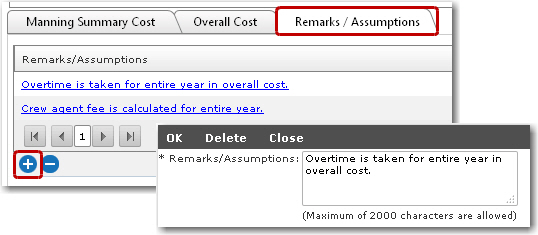
6. You can then specify any remarks or assumptions as required. The remarks displayed are derived from the Complement Code (if you have selected to create a budget from a Complement Code). Click the Remarks/Assumptions tab. Click the '+' icon at the bottom left of the table to add a new row. Then, type in remarks/assumptions pertaining to this budget, as needed. To edit an existing remark/assumption, click a remark/assumption record and then modify the text.
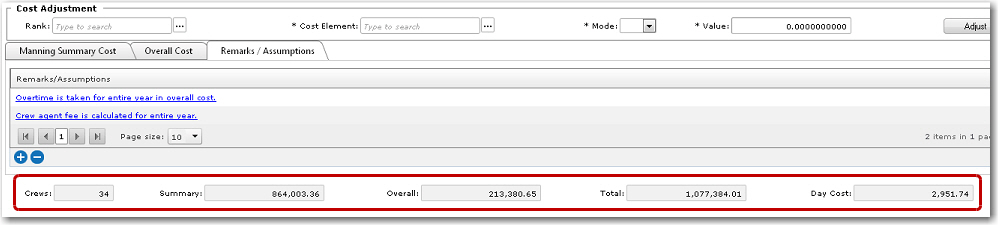
7. The section at the bottom of the screen displays a summary of the budget. For instance, it displays the number of Crew on which the budget is based, the Summary of the total manning summary cost, the Overall cost, the Total cost of both combined and even the Day cost.
8. Click Save to complete the creation of this new budget.
